MDM Lock and the Apple “Chimaera” Block: the Two Checks Everyone Forgets
TL;DR: There are two locks that iCloud, blacklist and carrier checks cannot see — the MDM lock, and Apple’s activation block, known as “Chimaera”. Neither one can be removed from your side, both are invisible on a device that is switched on and working, and both only bite after the next erase. You can check them in seconds with a serial or an IMEI.
Anyone who has bought a used iPhone or MacBook knows the drill by now: check that Find My is off, that the IMEI is not blacklisted, that the device is carrier unlocked. We wrote a whole guide about those three, and they are the right place to start.
They are not the whole picture.
There are two other locks that none of those three checks will reveal. A device can come back clean on all three and still be carrying one of them. And both share the same unpleasant property: they are dormant on a working device. The seller hands you a laptop that boots, runs, and looks perfect. It genuinely is perfect — until the day you erase it.
That is the trap. “I tested it, it works” proves nothing about either of these.
Lock #1 — the MDM lock (Remote Management)
MDM stands for Mobile Device Management. It is how companies, schools and universities administer the Apple devices they hand to their staff and students.
When an organisation buys Apple hardware through Apple Business Manager or Apple School Manager, it registers the devices’ serial numbers with Apple. From that point on, the enrollment lives on Apple’s activation servers, attached to the serial number itself — not to an account, not to the disk, not to anything stored on the device.
Wipe the machine and it does not go away. On first boot after an erase, the device phones Apple, discovers it is enrolled, and drops into a Remote Management screen demanding the organisation’s credentials. No credentials, no setup. You own a very expensive brick.
Why so many of these end up for sale
Not usually through malice. Companies refresh their fleets every three or four years and sell or scrap the old laptops in bulk. Releasing each serial from Apple Business Manager is a separate administrative step, and it is the step that gets skipped — by the IT person who left, or in the handover to the recycler, or simply because nobody knew it existed.
The result is a steady supply of ex-corporate MacBooks on the second-hand market that are still enrolled. Which is precisely the segment most people shop in, because ex-corporate machines are well specced, well maintained, and cheap.
Who can remove it
In practice, only the organisation that controls the device in Apple Business Manager or Apple School Manager can release it. Apple does not remove a device from the programme at a second-hand buyer’s request, and neither a repair shop nor you can do it from your side.
If the company still exists and you can reach the right person, it is a two-minute job for them. If they have gone under, been acquired, or simply do not answer, there is no route at all.
Tip #1: An ex-company Mac that runs perfectly today can lock itself the first time it is erased. Check the MDM status before you pay, not after.
Lock #2 — Apple’s activation block, known as “Chimaera”
The second one is less well known, and harsher.
This status has long been observed on professional activation reports, under the name “Chimaera Device Policy”. It is entirely separate from the GSMA blacklist that carriers feed.
One thing needs saying up front: Apple documents this status nowhere publicly. Not its exact meaning, not the criteria that trigger it, not any appeal process. Everything that circulates about its causes — theft, fraud, a device out of an unauthorised channel — is field hypothesis, not an Apple publication. What is observable, on the other hand, is entirely reproducible — and that is the part that matters to a buyer.
It is not a block on “now” — it is a policy for “next time”
This is the technical detail that explains everything else. The flag does not describe the device’s current state: it describes the activation policy that will apply at the device’s next activation. It travels in a field dedicated to that next activation, not in one describing the device today.
Hence the disorienting behaviour that catches buyers out. The device is on, it works, it makes calls, it shows no symptom whatsoever. Nothing fires while no fresh activation is needed. The day one is needed — typically after a reset or a restore — the policy applies, and the device does not come back.
It is also why “I tested it in front of you, it works” means precisely nothing here.
Where the name comes from
“Chimaera” is not an Apple word. It is the name the trade settled on, and the one that shows up as-is on device check reports, for this particular activation flag. If you have run into the term on a device listing, on a forum or in a report with no explanation attached, this is what it means — and here is what it means in practice: a device flagged “Chimaera” is a device Apple will refuse to reactivate, and no publicly known, reliable method removes that status.
Why a carrier check will not save you
It is tempting to assume a Chimaera device comes back clean everywhere else. The reality is nastier: the policy comes to sit on the carrier line. On the affected devices we see come through, the field that should name the carrier instead shows… the name of the policy itself.
So a SIM-lock check on such a device does not then answer “nothing to report”. It answers something that looks like an ordinary carrier lock — and a buyer who reads “locked” concludes that having it unlocked will sort it out. That is exactly the wrong conclusion: this is not a SIM-lock, no carrier will lift it, and the unlocking service you pay for will change nothing.
The two questions have to be kept apart. The GSMA blacklist is a telecoms database, fed by carriers, about network access. Apple’s policy is Apple’s, about activation. Two different databases, two different questions, and neither implies anything about the other.
Tip #2: a device reading “locked” is not necessarily SIM-locked. If it is the Chimaera policy sitting on the carrier line, no carrier unlock will make any difference.
Why the usual checks miss both
| Check | Tells you | Sees MDM? | Sees the Chimaera block? |
|---|---|---|---|
| Find My / iCloud | Whether the previous owner’s Apple ID still holds the device | No | No |
| GSMA blacklist | Whether a carrier reported the IMEI stolen or lost | No | No |
| Carrier lock | Which network the device is tied to, if any | No | No — it mistakes it for a SIM-lock |
| Powering it on | That it works right now | No | No |
Every answer in those last two columns is the same, and it is the reason these two locks catch so many people. The three standard checks are genuinely good checks. They are just answering three different questions, none of which is “will this device still activate after I erase it?”
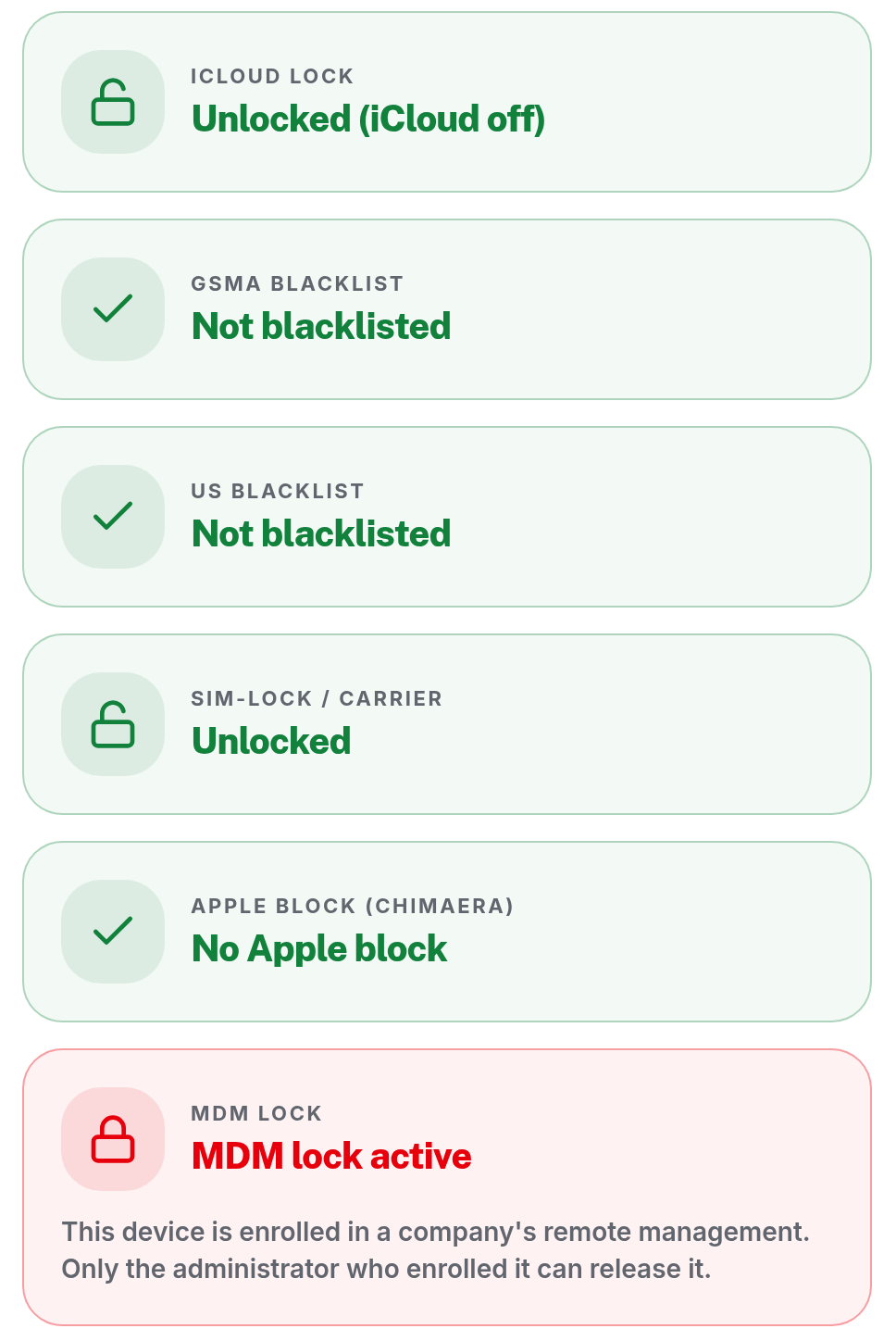
How to check both
You need the device’s serial number or IMEI — ask the seller for it before anything else. A seller who will not give you one has already told you something useful.
Buying a Mac? The MDM check is the one that matters. Macs have no IMEI, and the Chimaera block is checked against an IMEI, so it does not apply here. The MDM check runs on the serial number alone.
Buying an iPhone or a cellular iPad? Both checks apply, and you should run both. That is exactly what the Premium Smart report covers, on top of the three standard checks — it is the one we recommend here.
What to do with a bad result
MDM lock detected. Do not buy yet — but it is not automatically over. Ask the seller which organisation the device came from and whether they can have it released from Apple Business Manager. Plenty of sellers genuinely do not know their laptop is enrolled and will chase it up. If they cannot, or will not, walk away: you cannot fix this from your end, and a Mac stuck on the Remote Management screen has almost no resale value either.
Chimaera block detected. Walk away. There is no version of this story that ends well: no publicly known, reliable method removes this status, the device is worthless the moment it is erased, and you will not be able to pass the problem on to another buyer either. Be wary, too, of any service promising to “unlock” it — the subject has been circulating on specialist forums for years without a single reliable fix ever being demonstrated.
In both cases, a device that is working right now is not evidence of anything. The lock is waiting on the activation server, not in front of you.
Conclusion
The second-hand Apple market is a good market — the hardware lasts, and the savings are real. But the standard advice (“check iCloud, check the blacklist, check the carrier”) was written for phones, and it stops short of two locks that are hitting Mac buyers especially hard right now.
Both take seconds to check. Both are entirely out of your hands once the purchase is done. Ask for the serial, run the check, then decide.